Dashboard & the trade-status badge
The Dashboard is your day at a glance: whether you are cleared to trade, where each account stands against its limits, and how your discipline streak is doing. The badge is the same answer in one glance, floating over your platform.
Top of the Dashboard
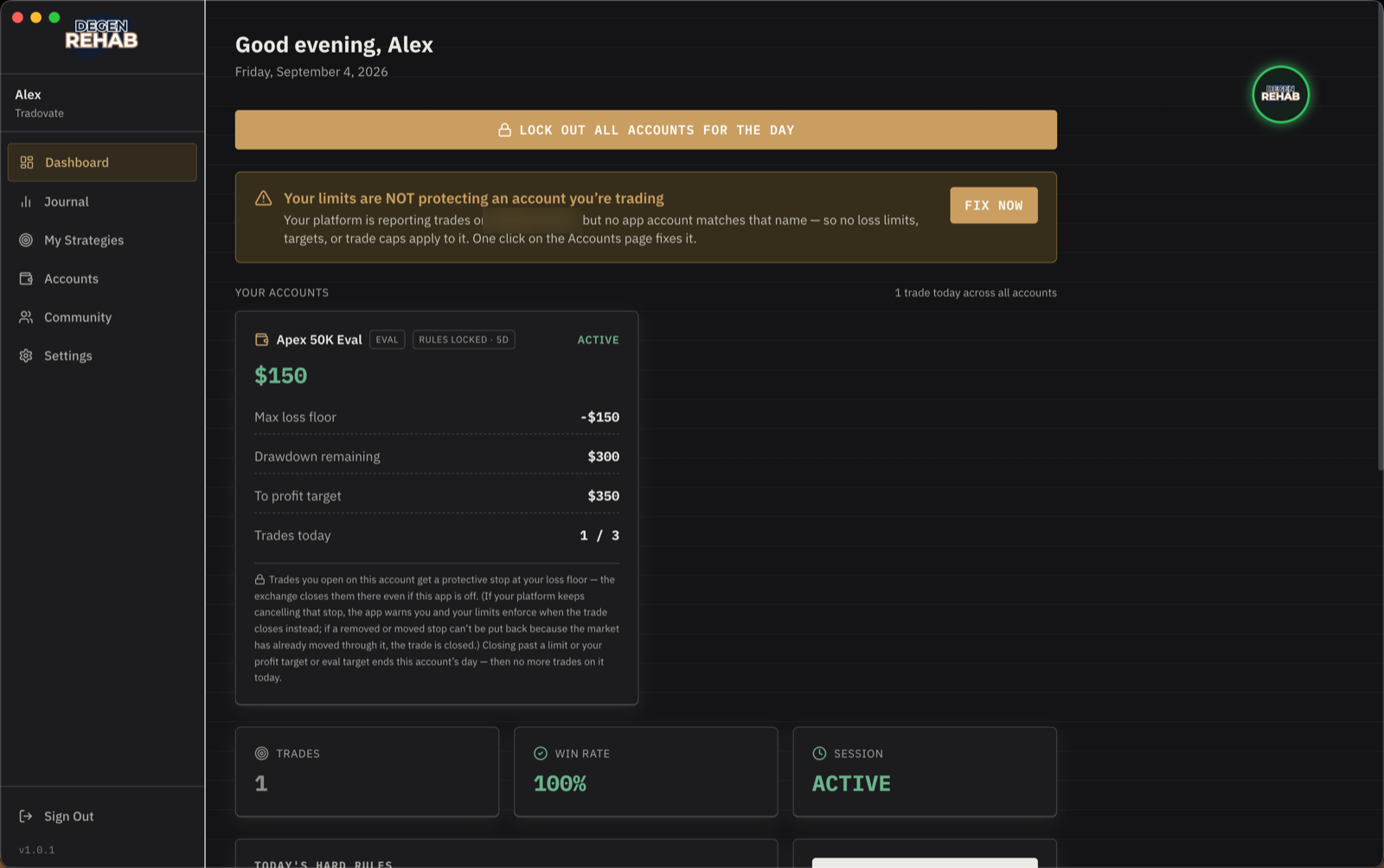
- Lock out all accounts for the day. The big button at the top. Done for the day and want to make it stick? This locks every account until tomorrow. It asks you to confirm.
- Status card. Before the ritual it says trading is locked: your platform is open, orders you place get closed on fill. After, it disappears or tells you about anything blocking you, like a cooldown still running.
- Unrecognised account banner. If your platform reports trades on an account you have not added, an amber banner appears. Click Fix now and the Accounts page sets it up in one click. Until you do, no limits protect that account.
Your accounts
One card per account. Each shows today's P&L, the max loss floor (where the day ends for that account; on green days it rises with your peak, and with Lock in profits on it rises to the share of your profit you chose), drawdown remaining, distance to profit target, and trades today against your cap. The status on the right reads Active, or the reason the account is locked. The small text under the numbers explains what the protective stop does on that account.
Session, rules, and the streak
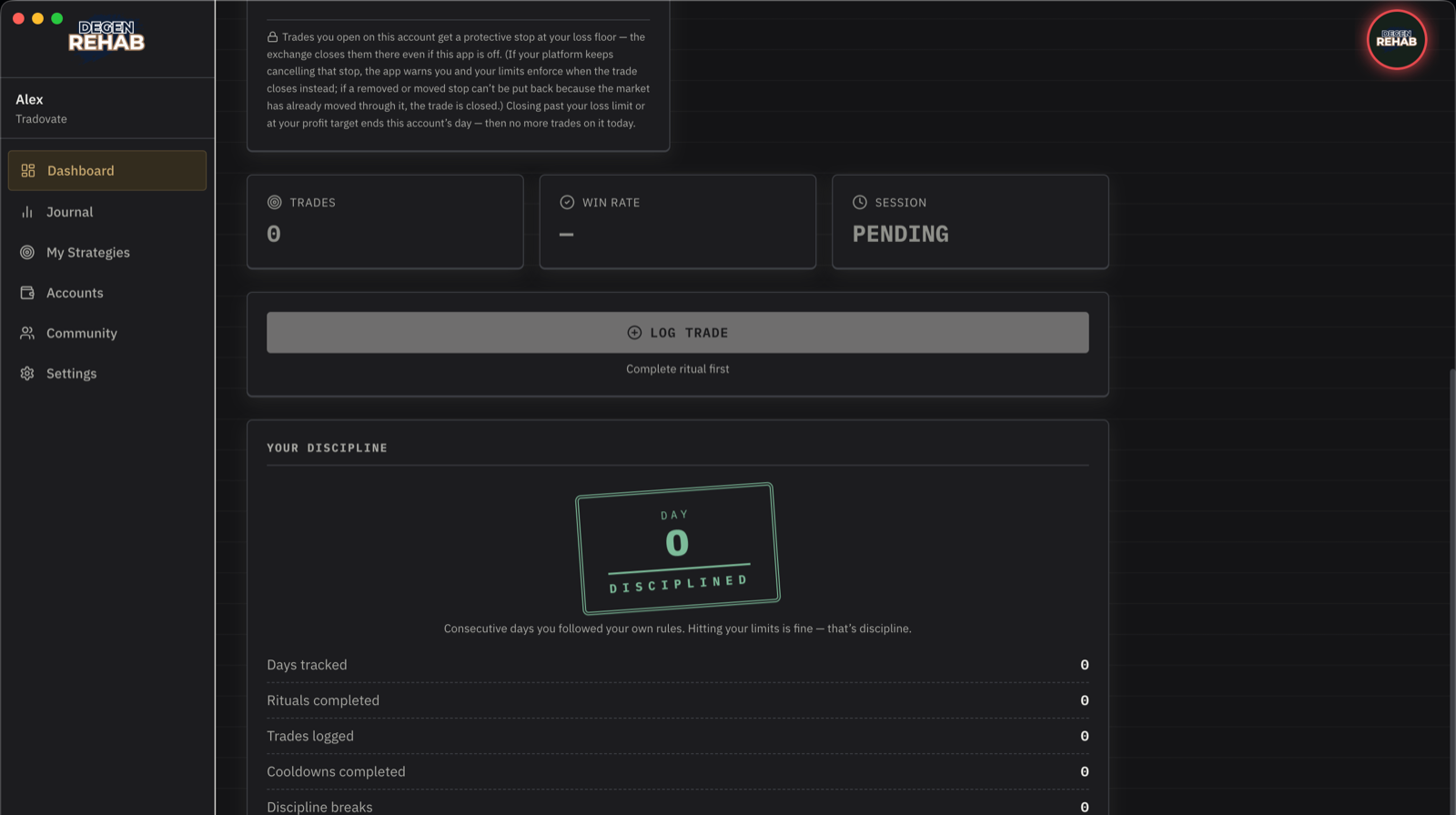
- Trades, win rate, session. Today's totals across all accounts. Session reads Pending before the ritual, Active after, and Locked or Completed when the day is done.
- Log Trade. Manual trade entry. With a platform connected you rarely need it, because trades are detected for you. End session for today closes the day cleanly.
- Your discipline. Consecutive days you followed your own plan. Hitting a limit never breaks the streak. Only two things do: an off-plan trade, and getting around a lockout. See Journal & your discipline streak.
The trade-status badge
The small round Degen Rehab logo floating on your screen stays on top of your platform so you always know where you stand without switching windows.
- Green: you are clear to place a trade on every account.
- Yellow: some accounts can trade and others cannot, for example one account is past its own trading hours or hit its trade cap. Click the badge to see which.
- Pulsing red: trading is blocked. Ritual not done, cooldown running, outside your hours, or locked for the day. Your platform stays open, but any trade you place while the badge is red is closed the moment it fills. Look at the badge before you click.
- Grey: the app is still checking right after launch, or it is not connected to your platform. Not connected means nothing is being watched or enforced; the badge's panel says so, and during your trading hours a notice tells you too. It usually reconnects by itself. If it does not, open Settings and press Connect.
Press and drag it anywhere to park it out of the way. The spot is remembered. Click it to open a see-through panel beside it listing every account, whether it can trade right now, and why not. Click the badge again or the × to close it (it also closes on its own after 15 seconds). Turn it off in Settings → App Behavior if you would rather not have it.
Pong
Click the badge three times quickly and it turns into the ball of a game of Pong played across your whole screen. Your charts stay visible underneath. You are the left paddle: move the mouse or use the arrow keys, and click or press Space to serve. Every ball you return adds a point and a bit of speed, and the computer paddle gets sharper as you go, so no game lasts forever. Press Esc or click the × at the top to close it and the badge goes back where it was.
Your best Pong score and how many games you have played show on your profile card, so your cohort can see who is any good at it. There is no leaderboard for it. The badge keeps its colour while you play, so a red ball still means trading is blocked.