
Accounts & daily limits
Every dollar rule in Degen Rehab lives on an account, not on you. Each account has its own limits and locks on its own, so a bad day on one evaluation never touches your funded account. This page explains every setting on the account form.
The Accounts page
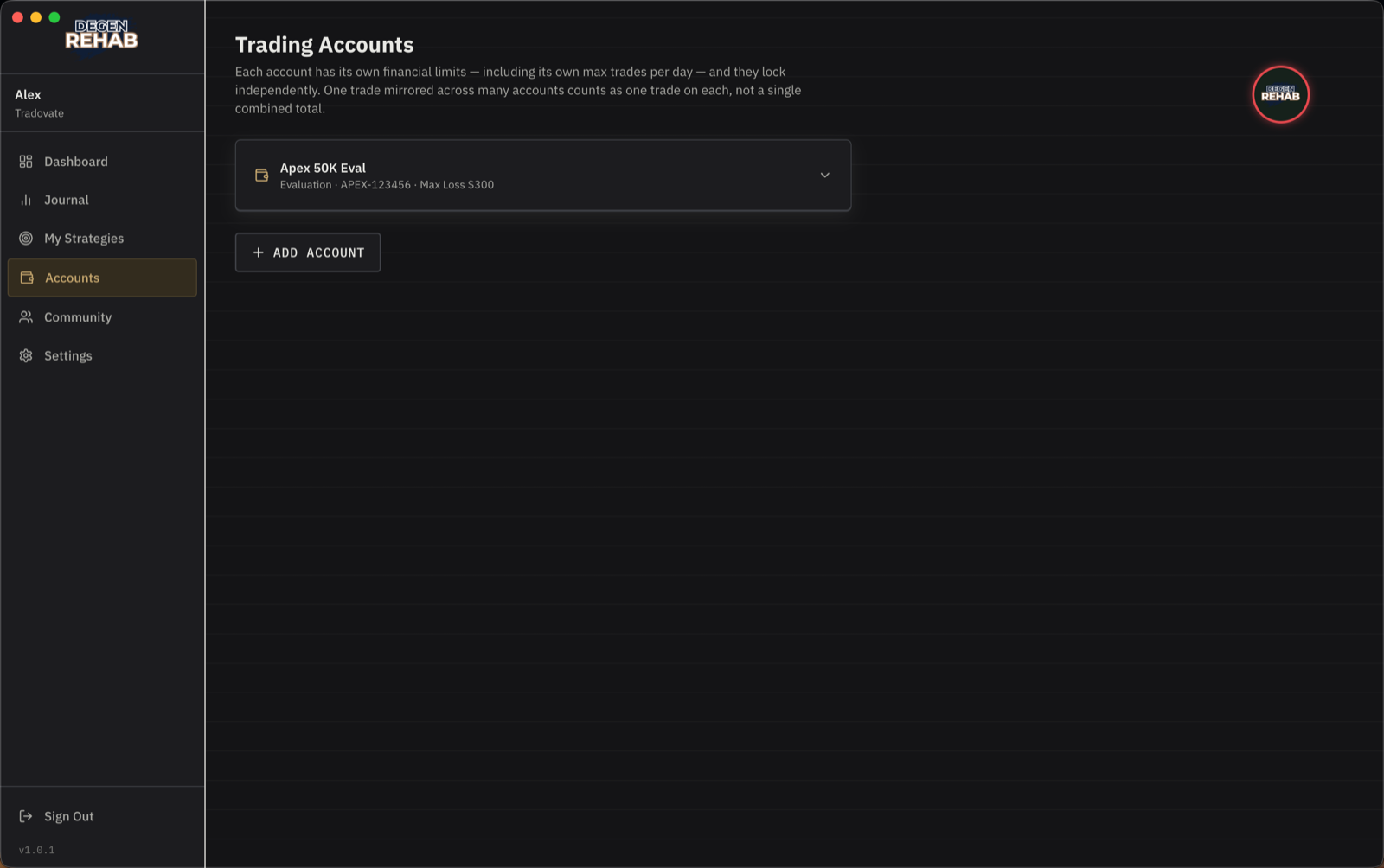
Click an account to open its settings. Add account creates a new one. When a platform is connected and reports trades on an account you have not added yet, a Detected on your platform card appears here. Click Add next to the name and the app creates the account, copying every limit from your first one.
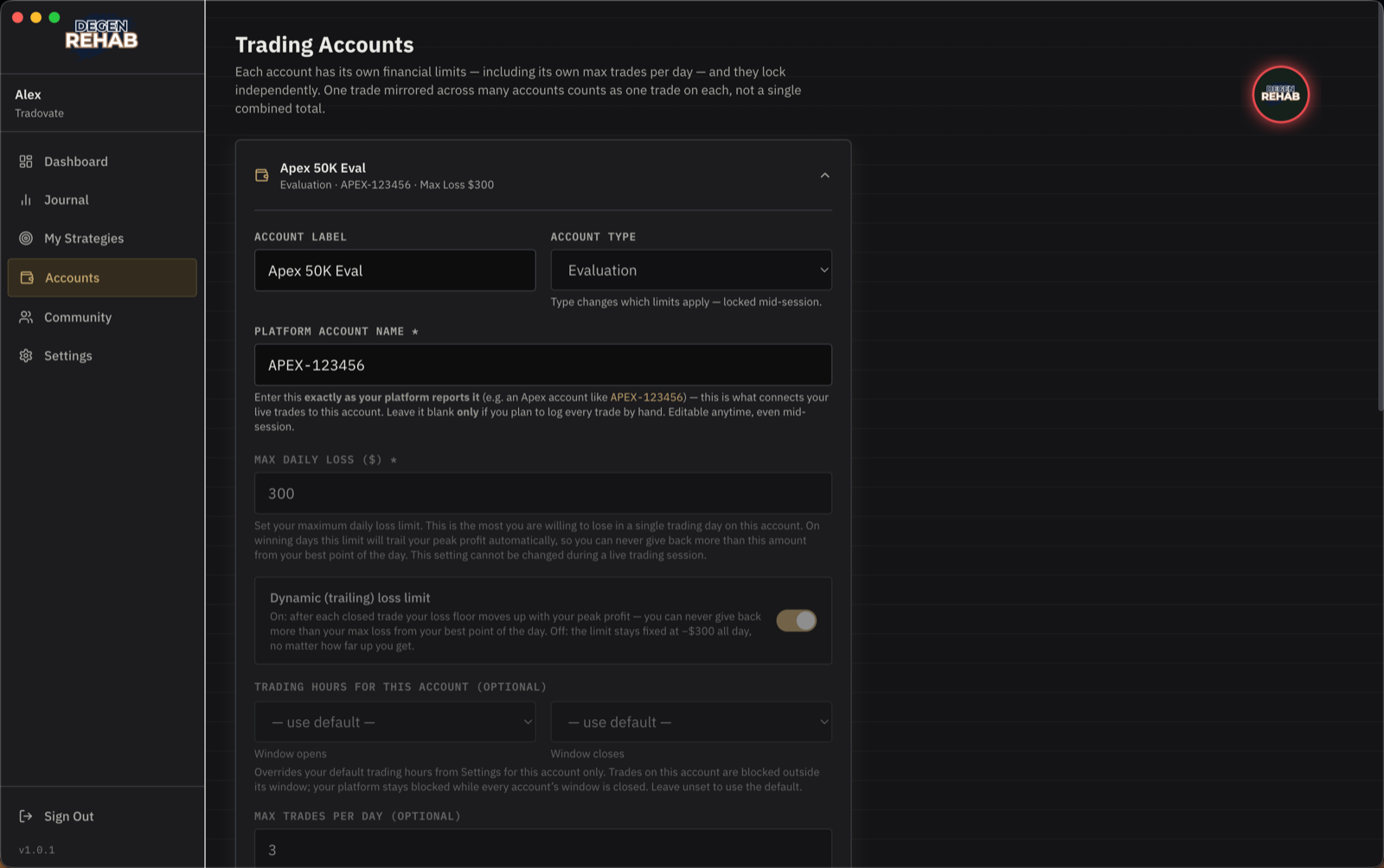
Identity
- Account label. Any name you like. Shown on the Dashboard.
- Account type. Evaluation, Funded, or Sim. It is a label that shows on the Dashboard; every account is enforced the same way.
- Platform account name. Exactly as your platform shows it, like
APEX-123456. This is what links live trades to the account. Leave it blank only if you will log every trade by hand.
Loss protection
- Max daily loss. Required. The most you are willing to lose in one day on this account. Reaching it locks the account for the rest of the day and, with a platform connected, closes any open trade. A protective stop that fills at your floor ends the day the same way: the account locks. You still get a short check-in card for that trade so it reaches your Journal, but there is no cooldown to sit through, because the day lock is the gate.
- Dynamic (trailing) loss limit. On, which is the default, means the floor rises with your best point of the day. If you are up $200 with a $300 limit, your floor is now −$100: you can never give back more than $300 from your peak. Off means the floor stays fixed at −$300 all day.
- Lock in profits. Off by default. On: once you are in profit for the day, you can only give back half of your best point (or whatever share you set). Up $400 with 50% locked in, your day ends if you fall to $200. Your max daily loss still applies when it is the tighter rule. Measured from your best closed-trade total of the day. The switch sits under the trailing-loss switch; enter a whole percentage from 1 to 99 (50 means you keep half). When this floor is the one you hit, the lock message calls it your loss floor rather than your maximum loss limit.
- Consecutive-loss lockout. This many losses in a row locks the account for the day. Wins and breakevens reset the count.
- Protective stop. Not a setting. With Tradovate connected, every trade you open gets a stop order placed at the exchange at the price where your remaining daily loss runs out. You may move it closer to your entry to stop out earlier. Moving it farther away than the app placed it, or removing it, is a strike. First strike, it is put back with a warning. Second strike, the trade is closed and the account locks.
Activity limits
- Trading hours for this account. Outside this window, a new trade on this account is closed the moment it fills, even while your other accounts are still inside theirs. A trade already open when the window closes is left alone. When every account is outside its window, the whole platform is blocked and the badge turns red.
- Max trades per day. After this many trades the account locks for the day. Counted per account, so one trade copied across five accounts is one trade on each.
- Max position size. With Enforce it on and a platform connected, any position bigger than this is closed the moment it appears and a notice tells you why. It does not count as a trade and there is no cooldown, so you can take the trade again at a proper size right away. With enforcement off it is a reminder.
- Blocked tickers (in Settings, one list for all accounts). A position that opens on a product you blocked is closed on sight with a banner. Close only: it does not count as a trade and there is no cooldown.
- No adding to open positions. With a platform connected, adding to an open position closes the whole position immediately and your post-trade cooldown runs. Partial fills of your entry order are fine. Scaling out is always allowed. Turning this off does not loosen your max position size: with Enforce it on, an oversized position is still closed.
Profit target
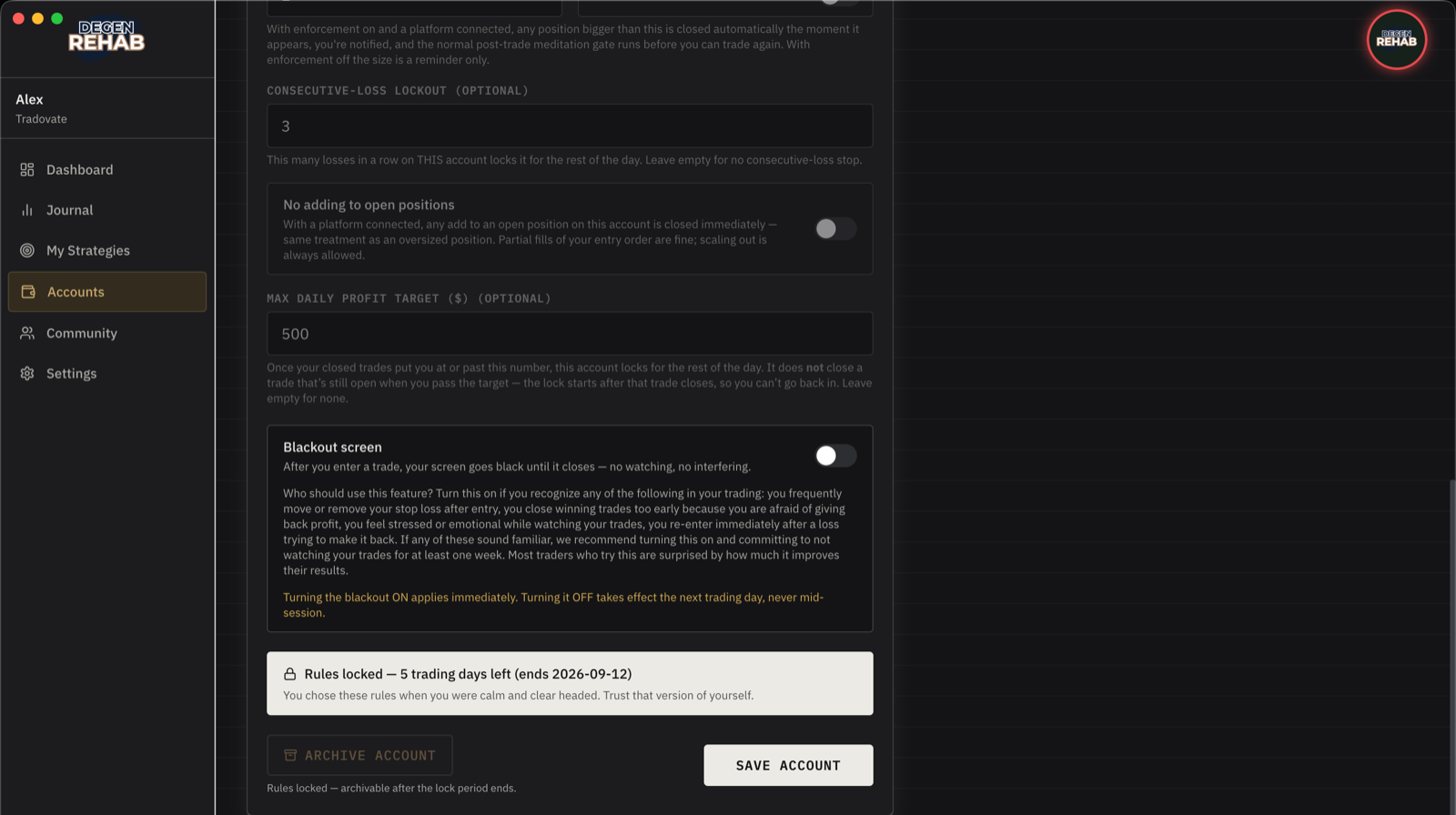
- Max daily profit target. Once your closed trades put you at or past this number, the account locks for the rest of the day, on a green note. It does not close a trade that is still open when you pass the target. The lock starts after that trade closes, so you cannot go back in. Optional, but it is the rule most traders wish they had followed.
Blackout screen
After you enter a trade, your screen goes black until the trade closes. No watching, no interfering. Turn it on if you move stops after entry, close winners early out of fear, or feel your pulse in your ears while a trade is open. Try it for a week. Turning it on applies immediately. Turning it off takes effect the next trading day, never mid-session.
If you genuinely need to manage a position while blacked out, hold the button at the bottom of the black screen for five seconds. That breaks your discipline streak.
Rule Lock
Each account carries the lock period you chose in onboarding, in trading days. While it runs, every limit above is read-only and the account cannot be archived. There is no override. When it ends, the account asks you to acknowledge that before you can edit anything. You can start a new lock at any time from the account's settings.