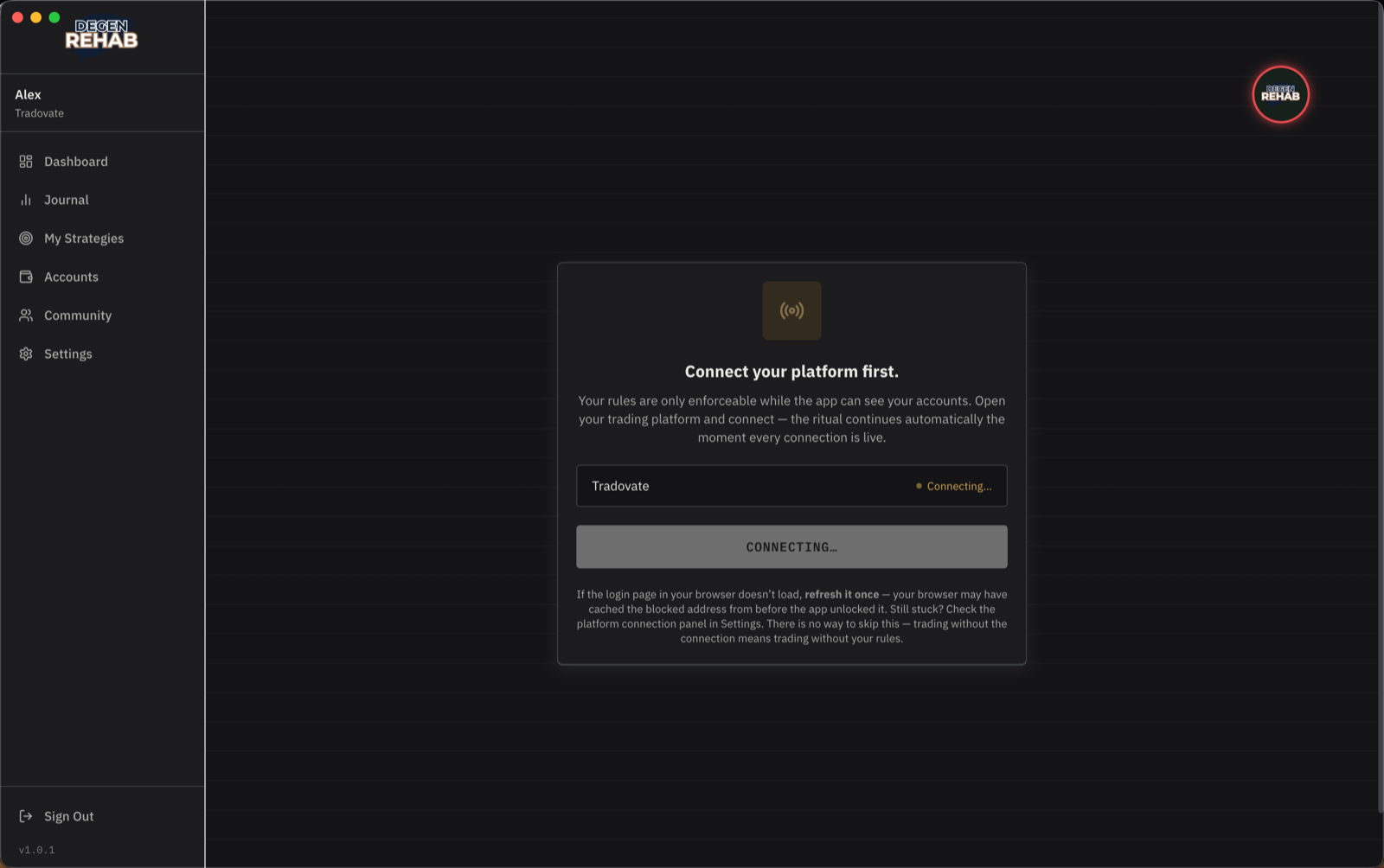
Connect your trading platform
Connecting your platform is what turns your rules from reminders into enforcement. Once connected, the app sees your fills and positions, closes trades that break a rule, and parks a protective stop at your daily loss floor. You connect your first platform during onboarding; this guide has the per-platform setup details, how to add a second platform from Settings, and what enforcement looks like. Manual trade logging remains for the rare trade a connection misses.
Which connection do I use?
- Tradovate. Use this if your account has a Tradovate or NinjaTrader login. That includes prop-firm accounts set up on Tradovate (Apex, Lucid, Tradeify, FundedNext and others) and accounts you sign in to with a NinjaTrader username, since both run on the same backend. A firm that only gives you a Rithmic or ProjectX username (Humble, Bulenox, Topstep and similar) cannot connect yet, even when you trade it inside NinjaTrader. Signing in happens in your browser. The app never sees your password.
- Trader Workstation (TWS). Use this for an Interactive Brokers account you trade in Trader Workstation, on Mac or Windows. It is TWS specifically, not the newer IBKR Desktop app, which has no API for the app to talk to. The app talks to TWS on your own computer through its local API, so TWS must be running. Same full enforcement as Tradovate, including cancelling the orders you place in TWS during a lockout.
Connect Tradovate
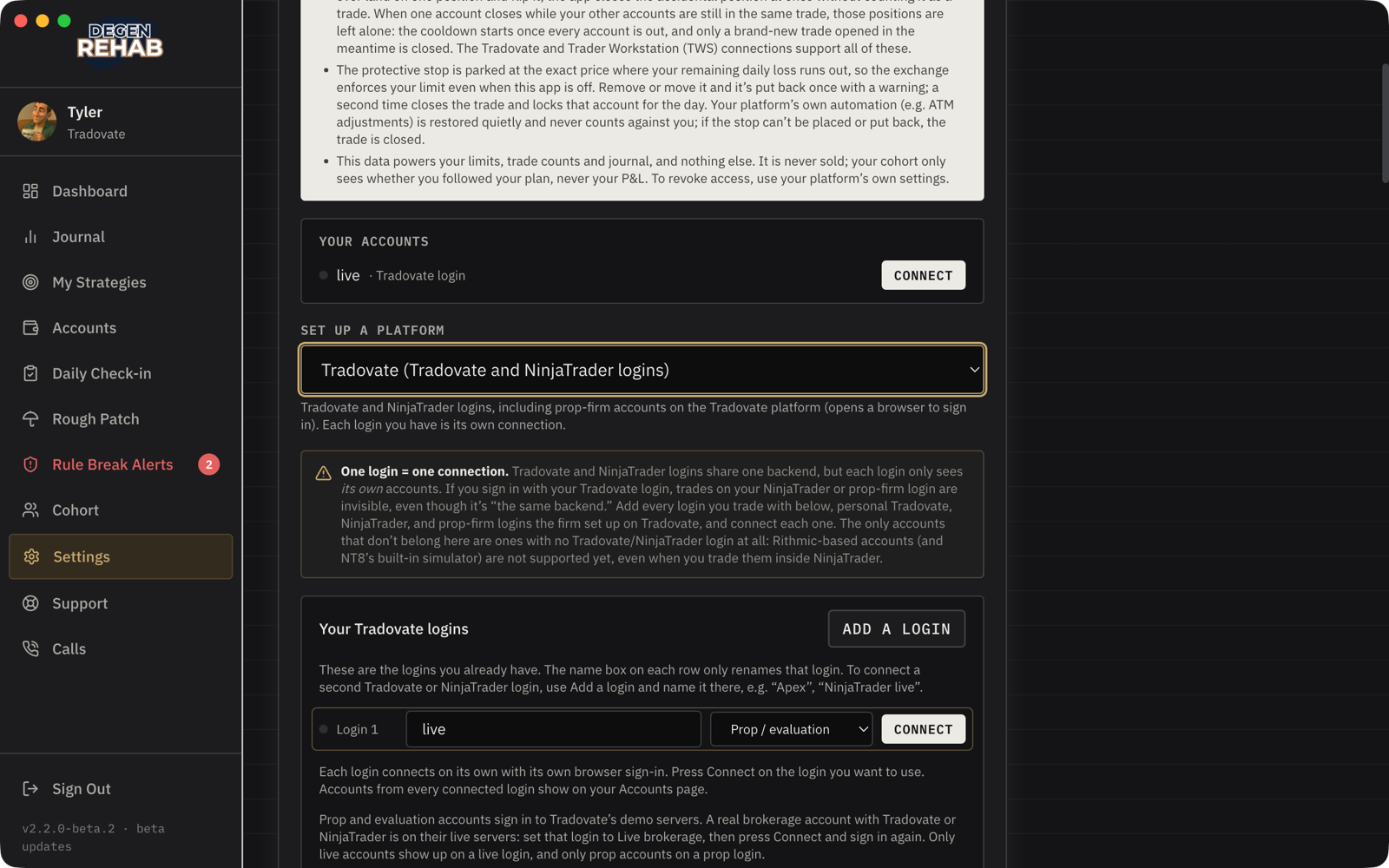
- Open Settings. The Platform Connection panel is at the top. Read the short "what this connection does with your data" box so you know exactly what the app can and cannot do.
- Under Your Tradovate logins, give your login a name so you can tell it apart later, for example "Personal" or "Apex". Names save automatically. Next to the name, pick the login's type: Prop / evaluation for prop-firm and evaluation accounts (Tradovate runs those on its demo servers) or Live brokerage for a real brokerage account. Most members leave it on Prop / evaluation. If the type is wrong the sign-in still succeeds but none of your accounts appear; change the type (that signs the login out) and connect again.
- Click Connect. Your browser opens Tradovate's own sign-in page.
- Sign in on that page with your Tradovate or NinjaTrader credentials and approve the connection. Come back to the app. The status turns green and reads Connected.
- Have more than one login? Click Add a login, name it, and connect it the same way.
Your accounts. Under the connection panel, every login you set up is listed with Connected or its own Connect button, so a login that dropped, for example because its session expired overnight, can be reconnected on its own without touching the others. The message Your Tradovate session expired. Press Connect to sign in again means exactly that, and after the ritual the Dashboard shows the same login with its own Connect button.
Connect Trader Workstation (Interactive Brokers)
The app talks to Trader Workstation on your own computer, so this is a one-time setup inside TWS, then a single click in the app. Works the same on Mac and Windows, and with a paper account. You do it during onboarding; the same steps apply when adding TWS later from Settings.
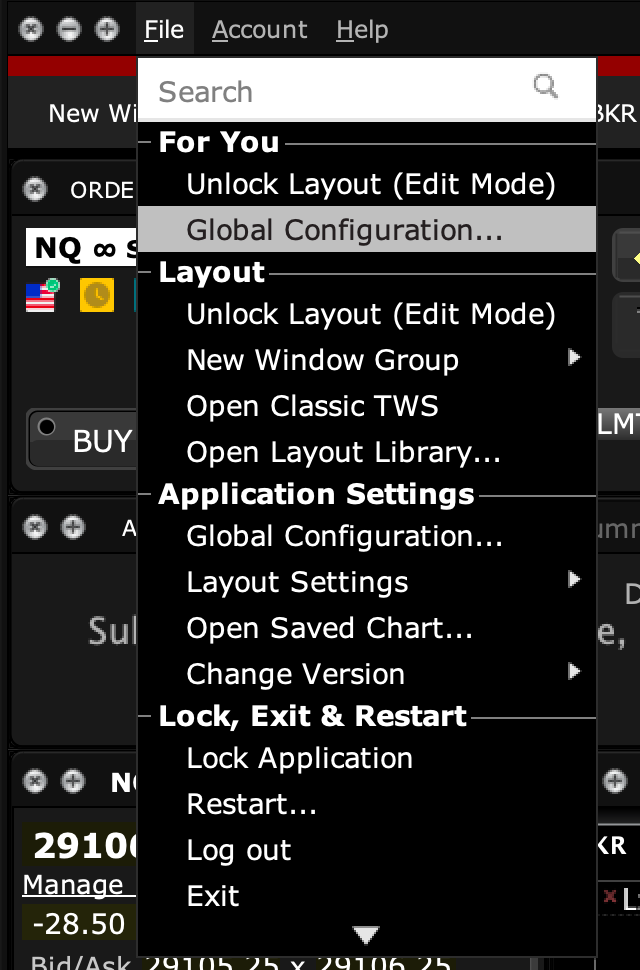
- In Trader Workstation, open File → Global Configuration.
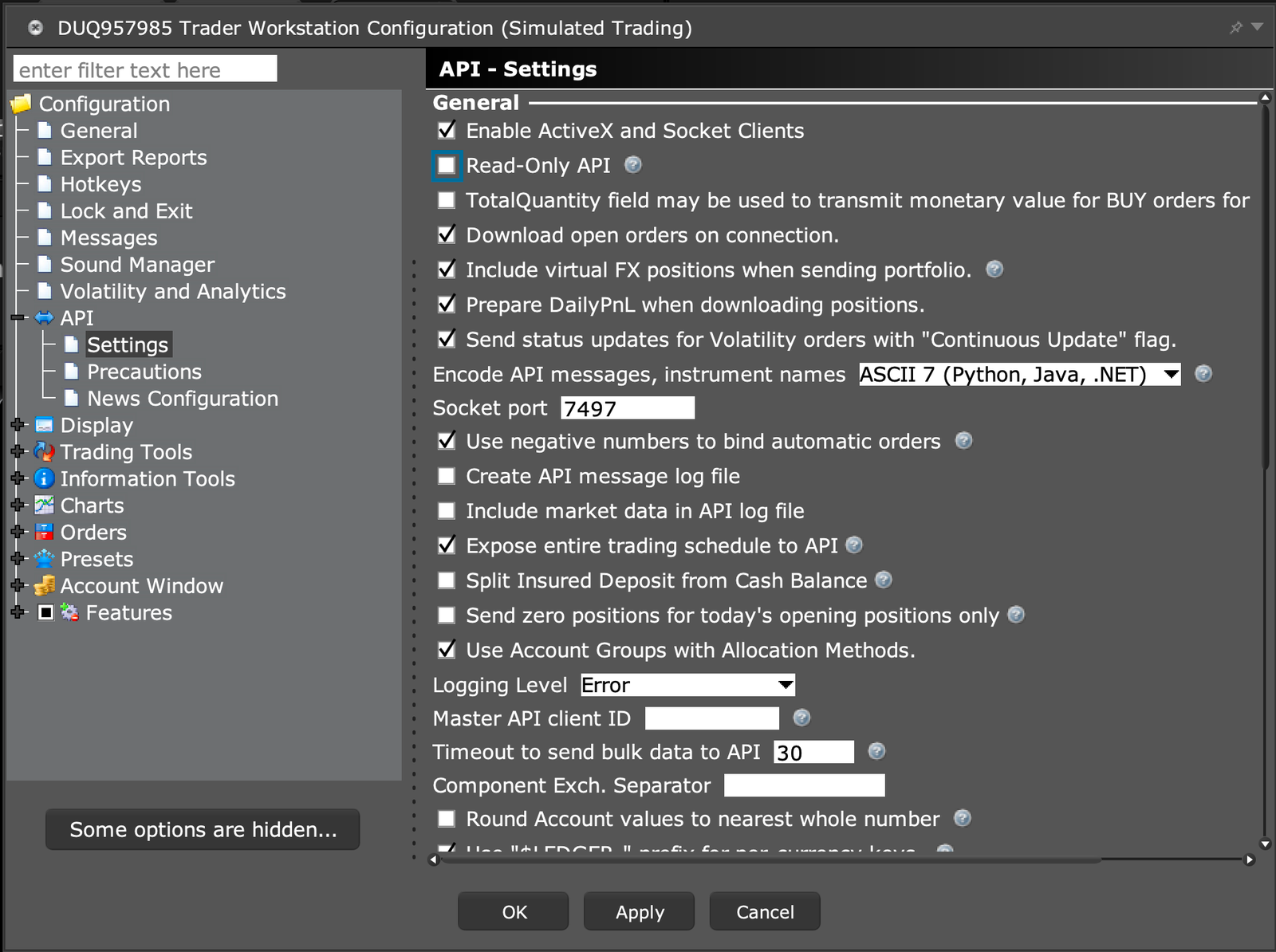
- In the left tree open API → Settings. Tick Enable ActiveX and Socket Clients and make sure Read-Only API is unticked. With Read-Only on, the app can see your trades but can't place your protective stop. Note the Socket port: paper TWS uses 7497, live TWS 7496 (IB Gateway: 4002 / 4001).
- Scroll down on that same page to Trusted IPs, click Create, and add
127.0.0.1. This stops TWS from asking you to approve the connection every time the app starts.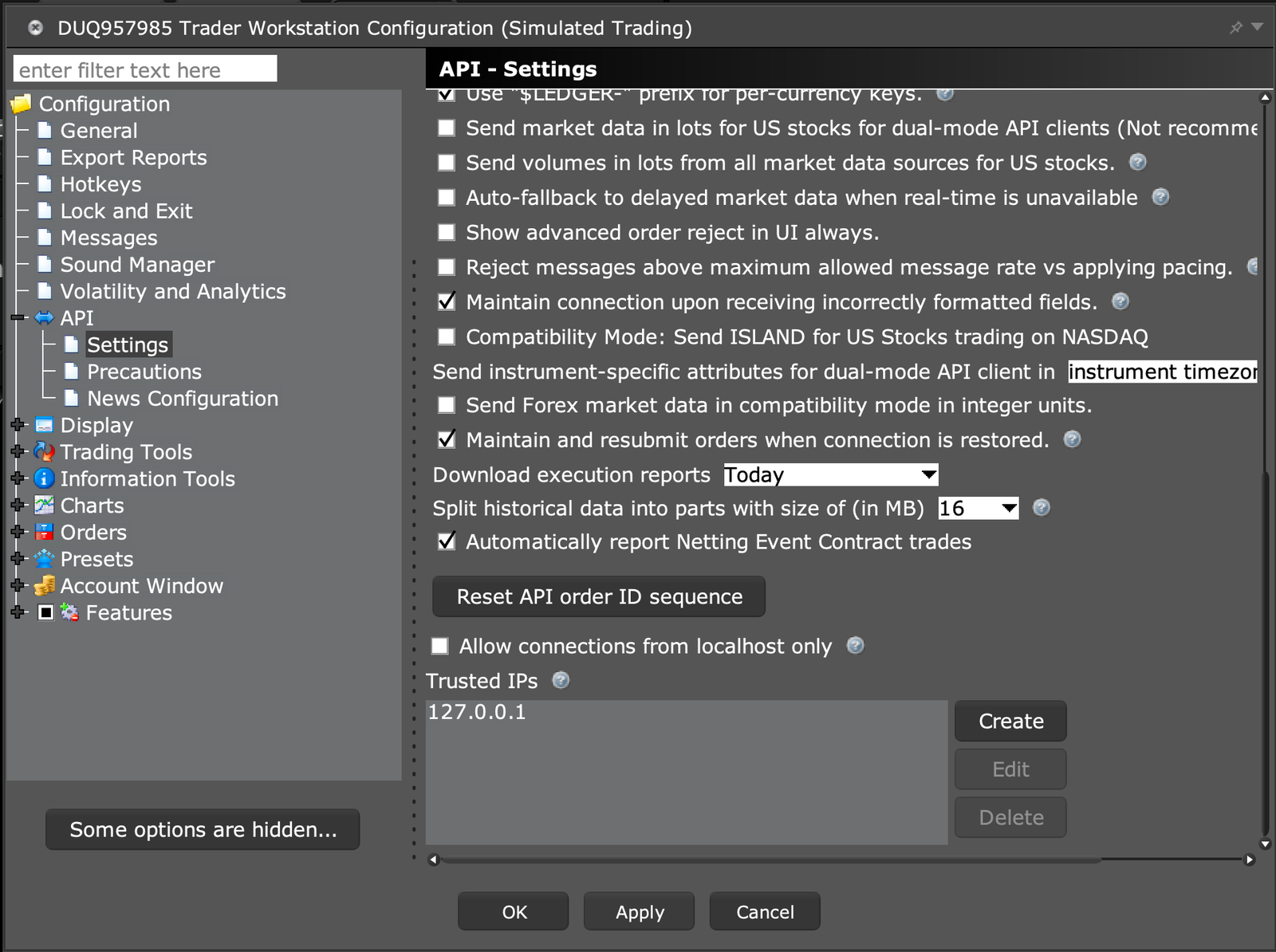
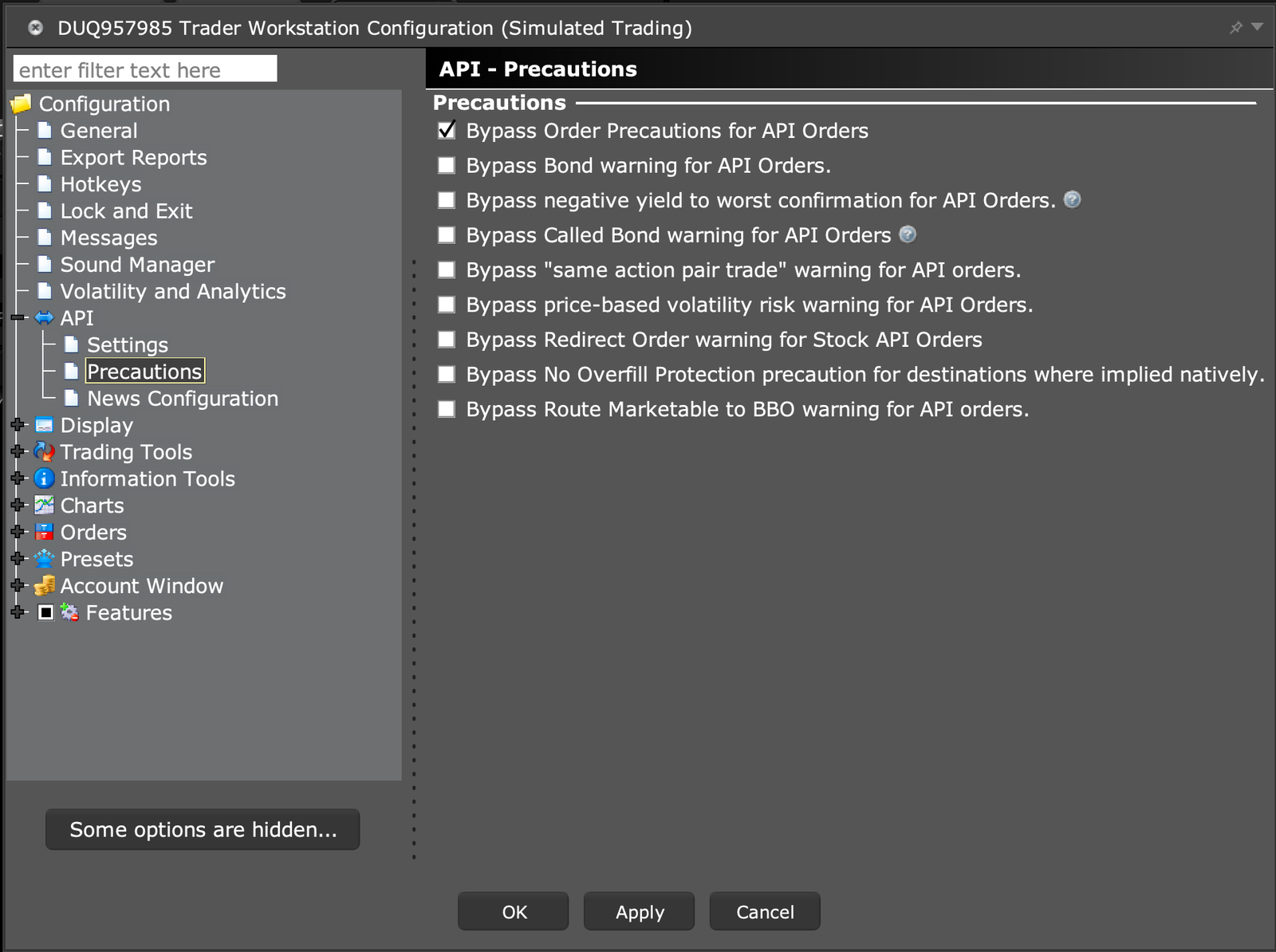
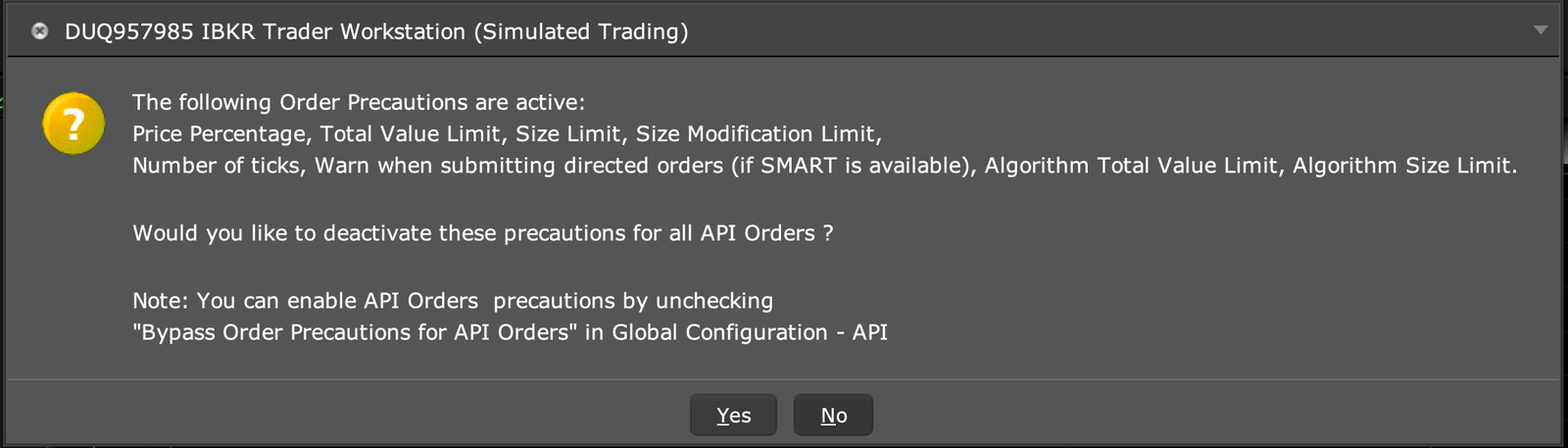
- In the left tree open API → Precautions and tick Bypass Order Precautions for API Orders. Without this, TWS holds every order the app places behind a confirmation window, including the protective stop, until you click Yes.
- Click OK. Then in the app (the Connect step of onboarding, or Settings → Platform Connection with Trader Workstation (TWS) chosen), enter the port if it isn't the paper default, and click Connect. The status turns green and reads Connected.
Map your accounts
The app links live trades to your accounts by the platform account name you entered for each account, for example APEX-123456. It must match exactly what your platform shows.
If a trade comes in on an account the app does not recognise, a banner appears in Settings and the Accounts page shows a "Detected on your platform" card. Click Add next to the name and the app creates the account for you, copying the limits from your first account.
What connected enforcement looks like
- Your platform stays open. Charts and order entry are never closed.
- While trading is blocked (ritual not done, cooldown, outside hours, or a daily limit hit), any new trade is closed the moment it fills and you get a big on-screen notice saying why. The floating badge is red the whole time trading is blocked: red badge, flattened trade.
- Every trade you open gets a protective stop placed at the exchange, at the price where your remaining daily loss runs out. Remove or move it and the app puts it back once with a warning. A second time closes the trade and locks that account for the day.
- If the connection drops while the app is running, the badge turns grey and, during your trading hours, a notice says Not connected: your trades are not being watched and your limits are not enforced until it reconnects. It usually comes back on its own; if not, open Settings and press Connect. When it is back, any trade that closed while it was away is checked against your limits.
- The app never opens trades. It only closes positions, cancels resting orders, and places that one stop.
The ritual's connection step and the Dashboard both refuse to unlock trading until every login you set up is connected. That is deliberate. Trading without the connection means trading without your rules.